'Text to Excel Wizard' (TXL Wizard) is a Windows tool from SoftInterface that converts structured text reports into Excel (XLS, XLSX) or CSV files. It is designed for repeating reports — same layout, changing data — where manual parsing or one-off scripts would be slow and error-prone. The tool runs from a graphical interface or the command line, and supports unattended batch processing of entire folders.
Three matching methods handle any text layout: the Profile method parses fixed-width text by column width and alignment; the Recipe method parses multi-table reports by marking start and end strings around each table; the File Marking method uses inline markers for one-off conversions. Leading zeroes are preserved during conversion — essential for accounting codes, IDs, and ZIP codes. Profiles and recipes are reusable, so a complex report only has to be configured once.
'Text to Excel Wizard' is compatible with the latest version of Microsoft Office (back to MS Office 97), runs 10 to 20 times faster than Excel for many operations, and is used by many of the world's largest corporations. Excel is not required for conversion. Free 30-day trial and 30-day money-back guarantee on every purchase — and this product is included free with every 'Convert XLS' purchase.
'TXL Wizard' is fast, easy and accurate. Convert simple to complex text files to csv or Excel. Remove the potential for human error!
We've made it so simple anyone can use TXL Wizard with the command line. Literally, zero training required. Nevertheless, we are always here to help you implement our software. Use the command line with the Windows scheduler and automate everything!
Process huge number of files with similar table structures (but with different data/number of rows).
If you need to convert TXT to Excel (XLS, XLSX or CSV), this application comes with the features you'll need:
Special Promotion: Buy 'Text to Excel Wizard' and get
'Convert XLS' free!
Plenty of CSV-to-Excel converters exist. A few reasons users pick 'Text to Excel Wizard' over the alternatives:
Built for repeating reports, not one-off conversions. Configure a Profile or Recipe once and run it on the same report every month, quarter, or year — even as the data inside changes. Generic converters require re-setup every time. 'TXL Wizard' treats the report structure as a reusable asset.
Handles complex text layouts that break generic converters. Multi-table reports, fixed-width columns, embedded headers and footers, variable row counts — the kinds of messy real-world reports that accountants, analysts, and IT teams actually receive. The three matching methods (Profile, Recipe, File Marking) cover any text structure.
Leading zeroes preserved. Account numbers, ZIP codes, IDs that start with zero stay intact through conversion. Open the same data in Excel directly and you lose them. This single fact saves hours of manual cleanup for finance and operations teams.
Risk-free evaluation, and bundled with 'Convert XLS'. Free 30-day trial with full functionality — no time-bombed features. 30-day money-back guarantee after purchase. Included free with every 'Convert XLS' license, or buy 'TXL Wizard' standalone and receive 'Convert XLS' free.
The command line is one of the most widely known, accepted and implemented methods for allowing one software app to initiate another app. That's why we've made it our goal to make all of our software command line able.
Automate text to Excel file conversions using:
The best method of conversion will depend on the input text file layout/type and
any features you find necessary. The table below will help you quickly choose. If
you are not sure which method would be best, send us an input file. The input file
need not contain proprietary data, dummy data is sufficient.
Email us at (Our response time will impress you).
| Method | Input File Format | Benefits/Features | How to implement method using Text to Excel Wizard |
|---|---|---|---|
| Profile |
Fixed Width Text File
format. Usually a single table. File type may be ASCII or UNICODE. Supports both Windows/Unix style text files. |
Excel not required for text to Excel
conversion! Extremely fast. Text files with data beginning with zeroes (e.g."00214123") can be processed without losing the leading zeroes. |
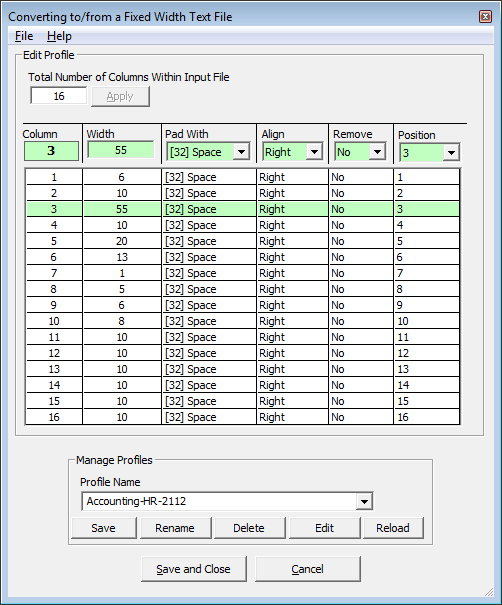
If you have the specification for your fixed width text file, using this method is
very simple. Use the built in Profile Editor to tell Text
to Excel Wizard the width of each
column. Additional properties may be specified for each column such as: Padding character to use, Alignment (which side to pad), Remove column from output, Reorder column in output. |
| Recipe |
1 to many tables of varying format can be within this file. Typically a unique marker denotes the start and end of the table(s). Ending marker not required for the last table. Text file can contain TAB characters. Supports both Windows/Unix style text files. |
Input text file can have multiple tables of varying format/size. Output Excel files can optionally be pre-existing which will allow for the preservation of previously saved formatting information. That means you can transfer text file data directly into a pre-formatted Excel file. |
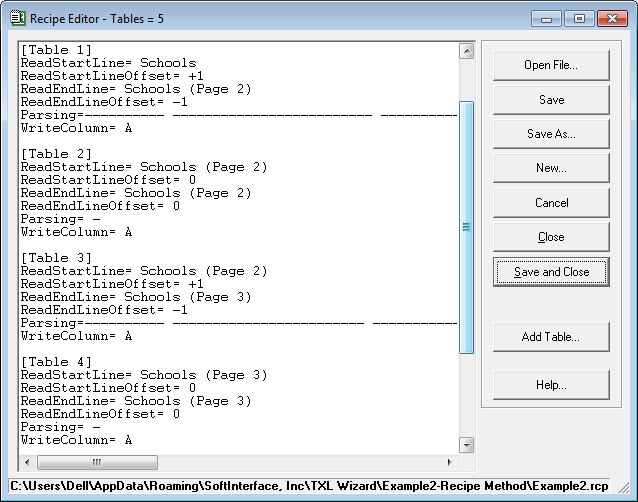
Essentially, you will write a recipe, using the recipe editor. This recipe tells 'Text to Excel Wizard'
the position and format of each table you want to convert. The format for the recipe
is quite simple. Once mastered this method is extremely powerful. |
| File Marking | Same as Recipe. |
Same as Recipe. |
This method requires that you modify the input file with special character sequences typed directly into the original document. This may be easiest choice if you only expect to process a given text file once. |
The Profile and Recipe File method can be used to process similar text files and
requires specifying a profile/recipe only once. This profile/recipe can then be applied
to multiple documents.
If you anticipate having many files with similar layout, the Profile or Recipe method
may be the appropriate choice. Keep in mind, similar layout does not mean each input
text file must be exactly the same. The number of rows in a given table can be different
for example, and the same profile/recipe will work. For the recipe method what must
be similar between files are specific text strings that the program uses to denote
the start and end of a table. For the profile method, the specific widths, padding,
and alignment used for each input file must be identical.
Below we show a couple of snapshots of 'Text to Excel Wizard' the most comprehensive "Convert TXT to Excel" tool ever built.
There are two methods to using the command line with Text
to Excel Wizard:
The command line is extremely simple with 'Text to Excel Wizard'. In fact you need only to use the user interface to set up exactly what you would like done, go to the File menu and save a 'Conversion Job' file. A 'Conversion Job' file is saved with the *.TXL file extension. This file extension will be recognized by your operating system as a 'Text to Excel Wizard' file. So simply double clicking the ConversionJob.TXL file from Windows Explorer, or specifying it within the Windows Task Scheduler is really all you need to do. The TXL file is a simple text file that can be easily understood and modified within any text editor. See the TXL File Specification for modifying the conversion job properties.
Several example conversion job files are installed. You can run these from the command
line or simply double click on them from Windows Explorer. You can get to the
example files within Windows Explorer by going to this folder:
%appdata%\SoftInterface, Inc\TXL Wizard\
If you still find you need the control of a classical command line to convert text to csv, no worries, we've provided it. You can find example batch (*.bat) files for quick and easy usage by going to:
%appdata%\SoftInterface, Inc\TXL Wizard\Example1-Profile Method\Example1-Command-Line-Demo.BAT
%appdata%\SoftInterface, Inc\TXL Wizard\Example2-Recipe Method\Example2-Command-Line-Demo.BAT
%appdata%\SoftInterface, Inc\TXL Wizard\Example3-Recipe Method\Example3-Command-Line-Demo.BAT
%appdata%\SoftInterface, Inc\TXL Wizard\Example4-File Marking Method\Example4-Command-Line-Demo.BAT
These will work without modification provided you installed in the default folder.
For a full discussion and list of command line switches please refer to the
Command Line Manual for 'Text To Excel Wizard'.
Email us at if you have any questions or need additional
examples. We will get you up and running fast!
After all, converting text to csv files is
what we do for a living.
TXL-Wizard: "We love this program. We use it to help with some conversions in Finance and it makes it so easy. It is a wonderful product. During the time were working out the kinks in what we were developing the software expired and your customer service was so accommodating and courteous in assisting us. I would highly recommend this product and your company by extension."
Stanacius Wallace, Four Seasons
Adobe Systems Inc. Chooses 'Convert Doc'. A custom site license has been signed by Adobe allowing them to install 'Convert Doc' on their servers. They will be using it specifically to do Doc to HTML conversions. "We look forward to using your product and potentially working together in the future", Bob Free, Adobe
Your products are very impressive, easy to use and script compatible, for what we desired in the management of MS Word and Excel
files. Thank you for your continue contact with me in regards to these tools. Mark Purinton EMC Corporation
"Your wonderful utility took a mere ten minutes to append all 22,000 files into one gigantic 2 gigabyte file. For comparison purposes, the program that wrote the files took approximately 30 hours to write out said 22,000 files. System: 1GHz Pentium/512 Meg RAM Laptop"
3
Simple methods to convert your Text files to CSV Files. Profile, Recipe and File Marking.54
Non-profit organizations assisted. Are you a member of one? Let us know, we would like to help.110
Customers in 110 countries. 1 in 3 Fortune 500 companies use our software.9.00 (04/21/2026)