NOTE: After installation, you can find simple batch files (e.g.
TestCommandLine.bat) for
quick and easy use by going to Start\All Programs\Convert XLS\Example Batch Files.
These will work without modification provided the installation was in the default folder.
Email us at
if you have any questions or need additional examples. We will get you up and running fast!
Although we'll discuss the use of the command line here, it's only to give you a taste. For the full, accurate, and up to date
information see the 'Convert XLS' command line documentation.
If you have trouble running these examples see
Helpful Hints For Creating a Command Line.
There are two approaches to using the command line:
- Specify one or more conversion tasks in a conversion job
- Specify a single conversion task in detail
A 'Conversion Job' is easily built using the 'Convert XLS' graphical user interface.
All the details of the job are saved in a single conversion job file (e.g. 'c:\myjobs\Do-Multi-Step-Combining.SII).
Specifying a conversion job file with the command line is very easy by using the /J switch. You can have hundreds or thousands of tasks
specified in the conversion job, all of which will get executed in one fell
swoop. For example:
ConvertXLS.EXE /J"D:\Job
Files\Combine Excel Sheets.SII"
Specifying a single conversion task requires a bit more effort, but does not require
the prior creation of a 'Conversion Job' file.
The first example shows how to convert the most popular form of a CSV file, a
comma delimited file, to an Excel file. The second example shows how to convert
any character delimited (tab, bar, semicolon etc.).
Each
switch shown in blue is described in detail at the bottom of this page.
It is highly recommended you review each switches description before implementing
the example, thereby giving you the full power of 'Convert XLS'.
Command Line Examples:
Merge Entire Worksheet From the Command Line
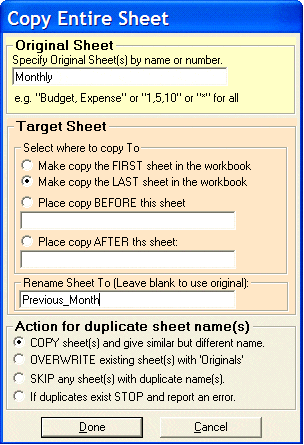
The special process constant associated with copying a sheet is 102.
|
/P# |
Meaning |
Extra Parameters: /1{Parameter1}
… /n{Nth
Parameter} |
|
102 |
Copy entire
sheet to the same or new XLS file.
|
/1 =
sOriginalSheet (by name or by number)
/2 = sSheetBefore (by name or by number)
/3 = sSheetAfter (by name or by number)
/4 = lActionOnDuplicate ()
/5 = sTargetSheetRename |
This special process can copy one entire
worksheet to the same or new workbook.
Special Parameters Described in Detail
/1{sOriginalSheet} Specifies the name or index of the sheet to copy.
/2{sSheetBefore} Copied sheet will be placed before this
sheet (Name or #). If this parameter is equal to "firstfirst",
then the new sheet is placed as the first sheet in the workbook.
/3{sSheetAfter} Copied sheet will be placed after this
sheet (Name or #). If this parameter is equal to "lastlast",
then the new sheet is placed as the last sheet in the workbook.
/4{lActionOnDuplicates} Specification for how to handle
duplicate sheet names. A duplicate exists if the
sOriginalSheet already
exists in the output workbook. 0=Copy sheet but give a slightly
different name automatically, 1=Overwrite existing, 2=Skip this
sheet and don't copy, 3=Stop processing if a duplicate is found.
/5{sTargetSheetRename} If you are copying a single sheet,
you can specify the name of the sheet using this parameter.
Leave blank to not rename.
Examples:
EXAMPLE 1 Copy entire
sheet, and place it at the end of the workbook
This example shows how to copy the "Sheet1"
of the workbook "D:\Data Folder\B.XLS", to a new sheet named
"Sheet1Renamed", placed as the last sheet within the same
workbook. If a sheet by the same name of "Sheet1Renamed" exists,
we'll copy anyway and have Excel give it a slightly different
name. The following syntax would be used:
ConvertXLS.EXE /S"D:\Data Folder\B.XLS"
/T"D:\Data Folder\B.XLS"
/P102
/1"Sheet1"
/3lastlast
/40
/5"Sheet1Renamed"
Note: You don't have to specify Boolean (TRUE/FALSE) parameters
that are FALSE. Nor do you have to specify parameters that are
empty.
The /S and /T
switches specify input and output workbook respectively,
which in this case is the same workbook. You can optionally keep
the input workbook unchanged by specifying different files for
the input and output.
EXAMPLE 2 Copy entire
worksheet from one workbook to a new workbook
To copy the "Sheet1" of the workbook "D:\My Data\B.XLS",
to a target sheet named "CopyOfSheet1" and placed it in a new
workbook "D:\My Data\C.XLS" in front of a sheet named
"Summary", the following syntax would be used:
ConvertXLS.EXE
/S"D:\My Data\B.XLS"
/T"D:\My Data\C.XLS"
/P102
/1"Sheet1"
/2Summary
/40
/5"CopyOfSheet1"
Command Line Examples:
Combine Specified Sheet Data to same or
different XLS file
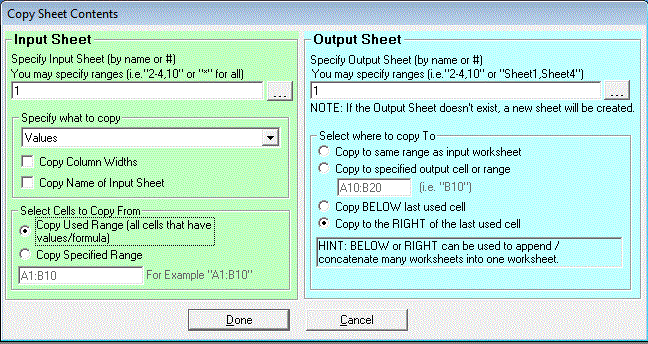
The special process constant associated with copying a sheet data is 101.
|
/P# |
Meaning |
Extra Parameters: /1{Parameter1}
… /n{Nth
Parameter} |
|
101 |
(XLS) Copy
specified data from sheet to the same or different XLS
file. Can be used for appending/concatenating many
sheets data to a single sheet
|
/1 = sInputSheet (by name or by number)
/2 = lWhatToCopy
0 = Values (DEFAULT)
1 = Formulas
2 = Values and Number Formats
3 = Formulas and Number Formats
4 = All
5 = Comments
6 = Formats
7 = Validation
8 = All Except Borders
9 = Column Widths
/3 = bCopySheetName ("TRUE"
or "FALSE")
/4 = bCopyFromSpecifiedRange
("TRUE" or "FALSE")
/5 = sSpecifiedRangeToCopyFrom
/6 = sOutputSheet (by name or by number)
/7 = bCopyToSpecifiedRange ("FALSE" or "TRUE")
/8 = sSpecifiedRangeToCopyTo
/9 = bCopyColumnWidths ("FALSE" or "TRUE") |
This special process can copy the data
(values/formula) you specify from one worksheet to another in
the same or different workbook.
NOTE: If you specify a whole folder of Excel files, you can
concatenate/append the data into a single sheet.
Special
Parameters Described in Detail
Note: You don't have to specify Boolean
(TRUE/FALSE) parameters that are FALSE.
Nor do you have to specify parameters that are empty.
/1{sInputSheet} specifies the name or
index of the sheet to copy data from.
/2{lWhatToCopy} is used to specify what
to copy from the worksheet.
For example to copy Values use
/2 0
If this switch is left out, the Values will be
copied by default.
/3{bCopySheetName} should be set to
"TRUE" if you want the newly created worksheet to have the same
name as the input worksheet.
bCopySheetName can be true only if you are creating a new
workbook by specifying an Output Target File (/T)
that is different from the Input File (/S).
This is because a Workbook file (XLS) can only have
uniquely named sheets.
This parameter is typically only used when sInputSheet
specifies the sheet by an index number. Multiple input sheets
are not possible when setting this parameter to TRUE.
/4{bCopyFromSpecifiedRange} should be
set to "TRUE" if you plan on using the sSpecifiedRangeToCopyFrom
parameter, otherwise set it to "FALSE".
If set to "FALSE" the entire 'Used Ranged' will be
copied.
/5{sSpecifiedRangeToCopyFrom} is used
to select a portion of a sheet to copy the data from.
Typical Excel range syntax is acceptable.
For example "A1:B10", "J5:K20, Z20", etc.
If this parameter is blank, the entire used portion of
the worksheet will be copied.
/6{sTargetSheet} specifies the name or
index of the sheet to copy data to.
/7{bCopyToSpecifiedRange} should be set
to "TRUE" if you plan on using the sSpecifiedRangeToCopyTo
parameter, otherwise set it to "FALSE".
If set to "FALSE", the data will be placed beginning at
cell A1.
/8{sSpecifiedRangeToCopyTo} is used to
select exactly where to place the copy data to within the output
worksheet, sTargetSheet.
Normal Excel range expressions are acceptable.
For example "A1:B10", "J5:K20", etc.
If this parameter is blank, it is placed beginning at
cell A1. If
the range specified is smaller than the copied data's range, the
data will be truncated.
To copy the data below already existing data, set
this parameter to "below".
To copy the data to the right of existing data,
set this parameter to "right".
HINT: To specify the location to begin
copying the data to (without the needing figure out the
destination range) simply specify a single cell (i.e.
"B10").
All the copied data will be placed starting at this cell.
/9{bCopyColumnWidths} In addition to
copying values, formulas, formats, comments etc., you can also,
at the same time specify to copy the column widths. Use /9TRUE
to copy column widths, /9FALSE to not. If this switch is left
out, it defaults to FALSE.
EXAMPLE 1 Copy all data
from one sheet to another, in same workbook
To copy the entire used range of
Values of "Sheet1" of the workbook "D:\XLSFilesData\A.XLS",
to "Sheet2" of the same workbook, the following syntax would be
used:
ConvertXLS.EXE
/S"D:\XLSFilesData\A.XLS" /T"D:\XLSFilesData\A.XLS"
/P101 /1"Sheet1"
/6"Sheet2"
The /S and /T switches specify input and
output workbook respectively, which in this case is the same
workbook. You can
optionally keep the input file unchanged by specifying a
different name or path for the output file.
EXAMPLE 2 Copy specified range of
formula from one workbook to another
To copy a specific range (B5:K10) of Formulas
of "Sheet2" of the workbook "D:\XLSFilesInfo\A.XLS", to "Sheet3"
(placing the contents beginning at cell J10) of the workbook
"D:\XLSFilesInfo\B.XLS", the following syntax would be used:
ConvertXLS.EXE /S"D:\XLSFilesInfo\A.XLS"
/T"D:\XLSFilesInfo\B.XLS" /P101
/1"Sheet2" /2
1 /4TRUE /5B5:K10
/6"Sheet3" /7TRUE
/8J10
EXAMPLE 3 Append sheet data
from a folder of workbooks to a single sheet
To copy the used range of Formulas of "Sheet1"
of all the workbooks in the "D:\ABC\" folder, to "Sheet1"
(placing the appended data below existing data) of the workbook
"D:\Output\Target.XLS", the following syntax would be used:
ConvertXLS.EXE
/S"D:\ABC\*.XLS" /T"D:\Output\Target.XLS"
/P101 /1"Sheet1"
/2 1 /6"Sheet1"
/7TRUE /8below
To place the data to the right of existing
data simply change
/8below
to /8right
Note it is highly encouraged that you use
the Verbose (/V) switch initially to see what the status of your
conversion is.
EXAMPLE 4
Copy ALL including column widths from one workbook to another.
To copy everything in the entire used range
"Sheet1" of the workbook "D:\XLSFiles\A.XLS" including column
widths, to "Sheet2" of workbook “D:\XLSFiles\B.XLS”, the
following syntax would be used:
ConvertXLS.EXE
/S"D:\XLSFiles\A.XLS" /T"D:\XLSFiles\B.XLS"
/P101 /1"Sheet1"/2
4 /6"Sheet2" /9TRUE
The /S and /T switches specify input and
output workbook respectively. The /9 switch specifies to copy the
column widths, while the /2 switch specifies to copy ALL.