
Customers
Adobe Systems Inc. Chooses 'Convert Doc'. A custom site license has been signed by Adobe allowing them to install 'Convert Doc' on their servers. They will be using it specifically to do Doc to HTML conversions. "We look forward to using your product and potentially working together in the future", Bob Free, Adobe
Great customer service, prompt attention to our requirements and lightening speed development has been my experience with the staff at Softinterface Inc. Within a few hours of installing... Bruce King, IBM Canada, Toronto, Ontario

 |
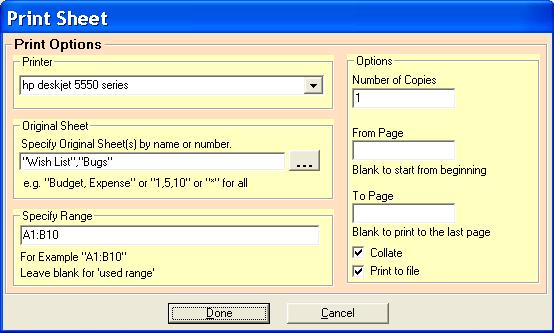
Follow these steps to print contents of a workbook: 1. Select the special process "[113] (*.XLS) Print Excel Sheet(s)" from the Special Process drop down list. The file format is automatically set as *.XLS. 2. Next select original and target files. Target file is only needed if you are printing to a file. Click the 'Click Here for Printing Details' button to modify printing details. 3. Click the Add button to add the task to the Conversion Task list. You may add multiple tasks to the Conversion Task list before initiating the conversion process by repeating Steps 1 - 3 as necessary. Click the 'Convert' button to execute the process.
'Convert XLS' can be run without a user interface with command line arguments much like in the good old DOS days. Alternatively you can initiate command line execution by going to the operating system 'command prompt' or within Windows at the START-RUN menu and typing it in there. Lastly, the command line interface can be used from Batch files (files with *.BAT extension). There are two approaches to using the command line: A) Specify a 'Conversion Job' that was built using the graphical user interface (GUI); or B) Specify a 'Conversion Task' in detail from the command line. See the 'Convert Xls' documentation for a full explanation and reference. Below we focus specifically on using 'Convert XLS' to bulk print Excel files. COMMAND LINE PRINTINGThe special process associated with printing is 113.
This special process can clear the contents that you specify in the range that you specify. Special Parameters Described in Detail /1{sPrinter} String associated with the printer you wish to print to. If you are not sure about this, use the graphical user interface and save a 'conversion job' from the file menu. Open this 'conversion job' file in notepad to see the string associated with the printer you used. /2{ sSheetsToPrint } Name or number of the sheet(s) to print. Required. /3{sRange} Range of cells being printed (i.e. "A1:B4, J10"). Leave empty for 'used range'. /4{lNumberOfCopies} Numeric value specifying the number of copies to print /5{lPageFrom} You can optionally specify a range of pages to print by using this and the lPagesTo parameters. Leave empty to simply print the range chosen /6{lPageTo} You can optionally specify a range of pages to print by using this and the lPagesTo parameters. Leave empty to simply print the range chosen /7{bCollate} If doing numerous copies of a print job that has more than one page, you may want to keep them in proper order by setting this parameter to "TRUE". /8{bPrintToFile} Set to "TRUE" to print to a file. If you are printing to a file, the target file must be specified. Examples: EXAMPLE 1: Print the 2nd sheet in a workbookTo print 1 copy of the 2nd worksheet and a specific range of cells in "C:\ExcelFiles\Summary.XLS" the following syntax would be used: ConvertXLS.EXE /S"C:\ExcelFiles\Summary.XLS" /T"C:\ExcelFiles\Summary.XLS" /P113 /1"HP Deskjet 550" /2 2 /3 A19:F19,Z12 /4 1 Batch print xls files by modifying the example above to meet your specific needs.
See Also:
|
|
Copyright © 1999-2025 by SoftInterface, Inc. All Rights Reserved. Providing Software Interfaces to automate your business. |





 You
can print some or all of one or more workbooks using the special
process for printing. In fact, if MS Excel can open it, you can
specify other file types as well (such as CSV for example).
You
can print some or all of one or more workbooks using the special
process for printing. In fact, if MS Excel can open it, you can
specify other file types as well (such as CSV for example).